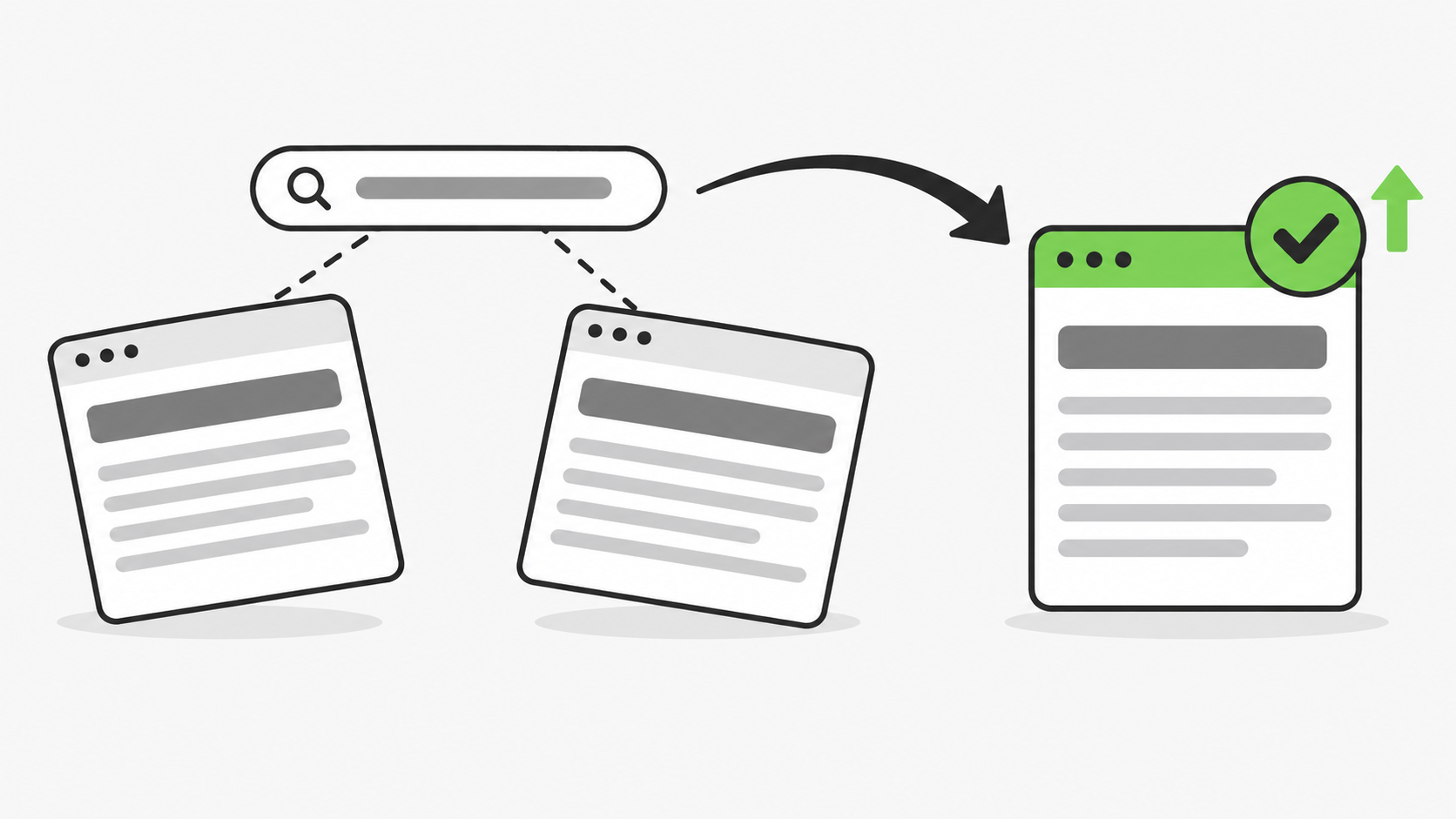
Keyword cannibalization is when two or more pages on your own website compete for the same search, and that competition holds both of them back. The fix is to pick one page to own the search, then merge, redirect or re-focus the others so Google gets a single clear answer.
The harder part is the step before the fix: working out whether you have a real problem at all. Most of the time, two of your pages showing for one search is nothing to worry about.
What keyword cannibalization looks like on a small business site
It rarely starts as a mistake. It starts as more content.
A plumber has a water heater repair service page. Later they publish a blog post about the signs a water heater needs repair, and then a city page that mentions water heater repair again. All three are useful to somebody. But if all three say much the same thing, Google has to choose between them, and it may choose a different one each month.
When we find this on a site we manage, we treat it as our own planning error. If two pages carry a lot of the same information, that was bad judgment in the strategy, and the pages should not have been built as separate pages in the first place.
When it is a problem and when to leave it alone
The most common mistake we see is people skipping the data. They spot a few pages ranking for the same keyword and assume the pages are cannibalizing each other. You have to look at the numbers before you touch anything.
Google’s own position is relaxed. In September 2025, Google’s John Mueller wrote: “If you have 3 different pages appearing in the same search result, that doesn’t seem problematic to me just because it’s ‘more than 1’. You need to look at the details, you need to know your site, and your potential users.” (Search Engine Journal)
Here are the two checks we use.
Check the gap in impressions. If one page gets around 1,200 impressions a month for a keyword and another gets around 20, the second page is too small to matter. We do not count that as cannibalization.
Check the gap in position. If one page sits at position 5 for a keyword and the other sits at position 82, they are not really competing. Google has decided the lower page has some relevance, but not enough to show it near the top. In that case we leave both pages live and add an internal link from the lower page to the one in the top 5.
| What you see in Search Console | What it means | What to do |
|---|---|---|
| One page has nearly all the impressions | Not cannibalization | Leave it |
| One page ranks near the top, the other is far down | Not really competing | Link from the lower page to the higher one |
| Two pages share impressions at similar positions, and neither ranks well | Real cannibalization | Pick one page and fix it |
| Google keeps switching which page it shows | Real cannibalization | Pick one page and fix it |
How to find it in Google Search Console
You do not need a paid tool for this.
- Open Search Console and go to Performance, then Search results.
- Click the search you care about in the Queries table. This filters the report to that one search.
- Click the Pages tab.
- If more than one page is listed, compare their impressions and average position using the two checks above.
If you have not set up Search Console yet, start with our guide to setting it up for your business website. [Internal link: existing Search Console setup post]
How to choose which page to keep
Start by reading both pages. Ask what is relevant to the page you are likely to keep, and whether the two pages are unique or mostly say the same thing.
If they overlap heavily, let the data decide. Look at which page gets more traffic and impressions, and keep that one.
Then weigh where your customers make their decision. Here is a real example.
A real example
We manage a site for a wholesale ingredient distributor. In August 2026 we published a dedicated supplier page, built to rank for the company’s main “supplier” and “wholesale” searches. The homepage was already showing for those same searches.
Search Console showed both pages appearing for the same queries, and neither was in the top 10. In its last four weeks the dedicated page showed for 89 searches and averaged position 87.
We kept the homepage. It was built for conversions, it was already ranking for these keywords, and it is where a buyer makes the decision to get in touch. Before redirecting the supplier page, we moved its best FAQs onto the homepage and added a section listing the products the company sells.
We would have made the opposite call if the dedicated page had been ranking higher than the homepage for the keywords that matter. Then we would have kept the dedicated page and pointed internal links at it from the homepage.
Here is the homepage’s average position on six of those searches, comparing the four weeks before the change with the four weeks after (Google Search Console, September 19 to October 16 and October 20 to November 16, 2026).
| Search | Before | After |
|---|---|---|
| wholesale [product] | 24.0 | 12.7 |
| bulk [product] supplier | 19.4 | 12.7 |
| bulk [product] suppliers | 18.7 | 13.2 |
| [product] distributors | 22.3 | 12.9 |
| [product] suppliers | 41.4 | 28.8 |
| bulk [category] supplier | 48.2 | 29.7 |
Across everything the homepage ranks for, average position went from 52.0 to 28.5 and impressions from 2,035 to 3,810.
Two honest caveats. These searches are still on page two, so clicks have not followed yet: the homepage had 52 clicks before and 55 after. And the redirect was not the only change. We improved the homepage content and cleaned up a second version of the homepage address at about the same time, so we cannot credit the whole gain to one fix.
How to fix it
There are three fixes. Which one you use depends on what you found.
Merge and redirect. Use this when two pages cover the same thing. Move anything useful and unique from the weaker page into the stronger one, then set up a 301 redirect from the old address to the page you kept. Google treats a redirect as “a strong signal that the target of the redirect should become canonical.” (Google Search Central)
Keep both and link them. Use this when one page is clearly ahead and the other is far behind. Add an internal link from the lower page to the higher one and leave both live.
Give each page its own job. Use this when both pages are worth keeping but have drifted onto the same topic. Rewrite the title and main heading of one so it answers a different question.
Do not hide the weaker page with a noindex tag. Google says it does not recommend noindex for choosing between pages on one site, “because it will completely block the page from Search.” (Google Search Central)
And do not delete a page just because it ranks lower. People get rid of the lower page without checking whether it ranks for other keywords that matter to the business. Check its other searches in Search Console first.
How to set up the redirect on your platform
| Platform | Where to click | Worth knowing |
|---|---|---|
| WordPress with Rank Math | Rank Math SEO, then Redirections, then Add New. Enter the old address as the source and the new page as the destination, choose 301 Permanent Move, then Add Redirection. | Turn on the Redirections module first under Rank Math SEO, Dashboard. (Rank Math) |
| WordPress with Yoast | Yoast SEO, then Redirects. Choose 301 Moved Permanently, enter the old and new addresses, then Add redirect. | The redirect manager is part of Yoast SEO Premium. (Yoast) |
| Elementor | Elementor sites run on WordPress, so use the Rank Math or Yoast steps above. | |
| Shopify | Content, then Menus, then View URL Redirects, then Create URL redirect. Fill in Redirect from and Redirect to, then Save redirect. | Redirects start working immediately. (Shopify Help Center) |
| Wix | SEO & GEO, then Tools and settings, then URL Redirect Manager, then New Redirect, then Single redirect. Enter the old address and pick the new page, then Save. | Works only on sites with a custom domain. (Wix Help Center) |
| Squarespace | Developer tools, then URL mappings. Add a line in this format: /old-url -> /new-url 301, then Save. | The old page must be deleted, disabled or given a new address first. (Squarespace Help) |
| Webflow | Site settings, then Publishing, then 301 redirects. Enter the Old path and the Redirect to path, click Add redirect path, then publish. | Needs a paid Site plan, and the old page must be deleted or set to draft first. (Webflow Help Center) |
After you save, type the old address into your browser and confirm it lands on the page you kept.
What to do after the fix
- Unpublish the page you removed. This takes it out of your sitemap.
- Ask Google to look again. In Search Console, inspect the address of the page you kept and click Request indexing. This can help Google process the change sooner, though Google notes that “submitting a request does not guarantee that the page will appear in the Google Index.” (Search Console Help)
- Add internal links. From other pages on your site, link to the page you kept, using the search you want it to rank for as the link text.
- Check the data in three to six weeks. Look at the same search in Search Console. If average position and impressions have both improved, you made the right call.
Give it one to three months before you judge the result. Nobody can promise you a ranking, and one fix will not move every search. In our example above, a few searches moved the wrong way while the main ones improved.
How DIY SEO finds and fixes cannibalization
DIY SEO runs this same check for you. Click Check for cannibalization and it reads the last 90 days of your Search Console data to find searches where more than one of your pages shows up.
It applies the same kind of test described above, so it does not flag every overlap:
- It skips searches for your own business name and searches with too little data.
- A page only counts as competing if it gets a real share of the impressions and ranks close to your best page for that search. A page far down the results is left out.
- It compares three separate months to see whether Google keeps switching which page it shows.
For each issue it finds, DIY SEO shows the competing pages with their clicks, impressions and position, names the page to keep, and gives a role to every other page: merge it, re-focus it, or keep it and link it. Each issue is rated high, medium or low so you know where to start.
Three other parts of the product pick up from there:
- Fix guides for your platform. Each issue links to the step-by-step redirect, title and internal link guides for the website platform in your business profile.
- Internal link suggestions. DIY SEO suggests links from your strongest pages, with the exact sentence to edit, and it respects the cannibalization check so it never pushes links toward a page that should step back.
- Serge. Ask for a fix plan on any issue and Serge writes the numbered steps for your platform, using only the evidence in the report.
[Screenshot: the cannibalization screen for the sample business, labeled as a sample]
DIY SEO is $99 a month with a 7-day free trial. Start your free trial
Questions owners ask
Is it always bad when two of my pages rank for the same keyword?
No.
If one page gets nearly all the impressions, or one ranks near the top and the other is far down, they are not competing in any way that matters.
Should I delete the weaker page?
Not without checking it first. Look at what else it ranks for. If you do remove it, move the useful parts to the page you are keeping and set up a 301 redirect.
How long does it take to see a difference?
We look at the data three to six weeks after the change and tell clients to allow one to three months.
Can my homepage compete with one of my own pages?
Yes. It happened in the example above. Keep whichever page ranks higher for the searches that matter, and weigh where your customers are most likely to get in touch.